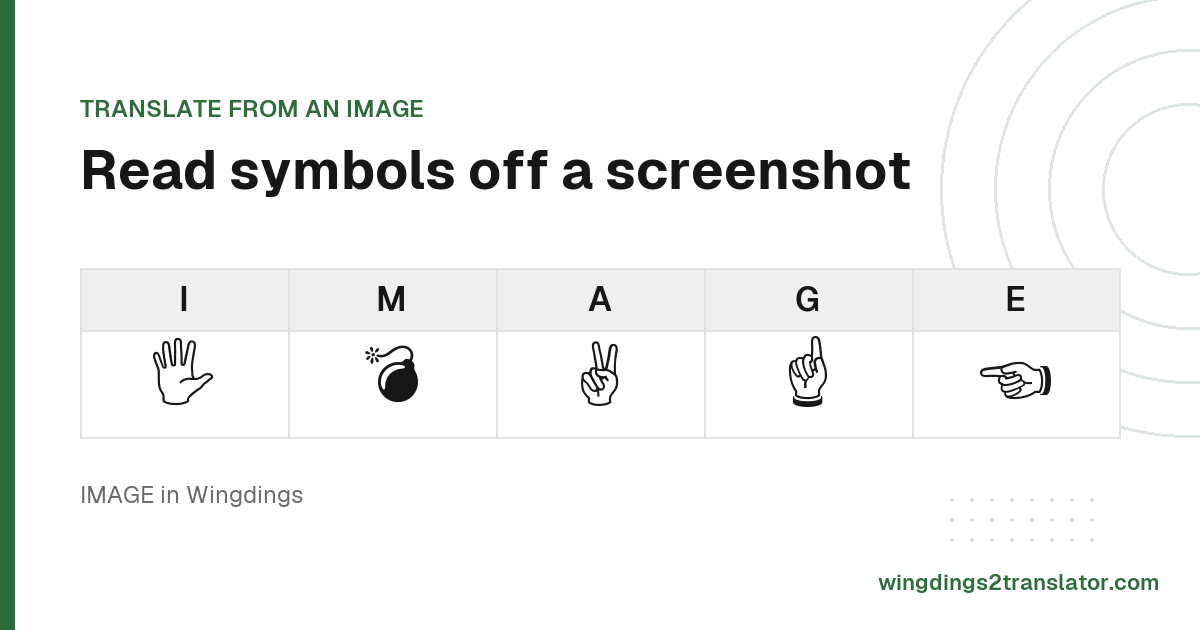
How to translate Wingdings from a picture
- No image handy? Click "Try a demo image" to see it work first.
- Pick the font you think the image uses. Wingdings is the usual answer.
- Drop your image on the box above, choose a file, or press Ctrl+V to paste one.
- Read the decoded text, and check any symbol the tool underlined.
- Fix anything it misread, then copy the result.
The row of symbols under the box shows what the reader actually saw. Comparing it against your image is the quickest way to spot a mistake.
Unsure which font you are looking at? Try Wingdings first, then the others. Only one of them will produce real words.
Getting the best results from an image
Resolution decides almost everything here. Several Wingdings symbols are the same shape at different sizes, so a blurry or heavily compressed image collapses distinctions the reader depends on. A crisp screenshot at its original size beats a large but soft one every time, whatever the pixel count says.
Four things that reliably help:
- Crop tight to the symbols, leaving out surrounding page furniture.
- Screenshot rather than photograph, whenever you have the option.
- Use the original file, not a version resent through a chat app.
- Keep the text straight. A tilted line confuses the row detection.
Small images are scaled up automatically before matching, so you do not need to enlarge anything yourself first.
What this image reader can and cannot read
This reader is accurate on clean screenshots and unreliable on photos. It matches each shape against the real font rather than guessing at words, so it has no spelling knowledge to fall back on when an image is poor. Here is how it scores on text rendered from each font.
The two columns matter because the same glyph is drawn differently depending on where your picture came from. The reader knows both shapes.
| Font | Typed in the font | Copied from this site |
|---|---|---|
| Wingdings | 99% | 95% |
| Wingdings 2 | 99% | 98% |
| Wingdings 3 | 98% | 86% |
| Webdings | 81% | 95% |
Those are best-case numbers, measured on perfectly rendered text. Treat them as a ceiling rather than a promise for your screenshot.
Webdings typed in the font scores worst. Its icons are dense and wide, so neighbouring symbols run together and the reader splits them in the wrong place.
Handwritten or hand-drawn symbols will not work at all, and neither will symbols rendered in a font this site does not carry.
One case is harder than these numbers suggest. Wingdings 2 and Wingdings 3 draw some symbols at several stroke weights, which a picture rarely separates. Check anything underlined.
Checking a single symbol rather than a sentence? The character chart is faster and certain.
Translating Gaster text from Undertale screenshots
Undertale screenshots are the one case this tool handles badly. The game draws Gaster's dialogue as pixel art rather than in Microsoft's font, so the shapes on screen are not the shapes this reader was built to match. Expect poor results from a straight upload, and often nonsense rather than words.
The character mapping is identical, though. Only the drawing differs, so the letters are still recoverable.
The practical route is to read the symbols off the screenshot yourself and type the matching keys into the Gaster translator.
Entry Number Seventeen is in capitals, so keep your input uppercase or every symbol comes back wrong.
Wingdings image translator FAQ
Can I translate Wingdings from a photo?
You can translate Wingdings from a photo, but expect worse results than from a screenshot. Camera photos add glare, blur and a tilted angle, all of which distort the symbol shapes the reader matches against. Crop tightly and shoot straight on.
Why did some symbols come out wrong?
Symbols come out wrong when the image is small, blurry or heavily compressed, because several Wingdings glyphs differ only in size or weight. Anything the reader was unsure about is underlined, and the decoded text stays editable so you can fix it.
Does it work on Undertale screenshots?
Undertale screenshots usually do not work. The game draws Gaster's dialogue as pixel art rather than in the real font, so the shapes differ from the ones this reader matches against. Type those symbols into the Gaster translator by hand instead.
Is my uploaded image stored?
Your image is never uploaded anywhere, so there is nothing to store. Recognition runs entirely inside your browser using a character map downloaded to your device. Close the tab and every trace of the image goes with it, leaving nothing behind.