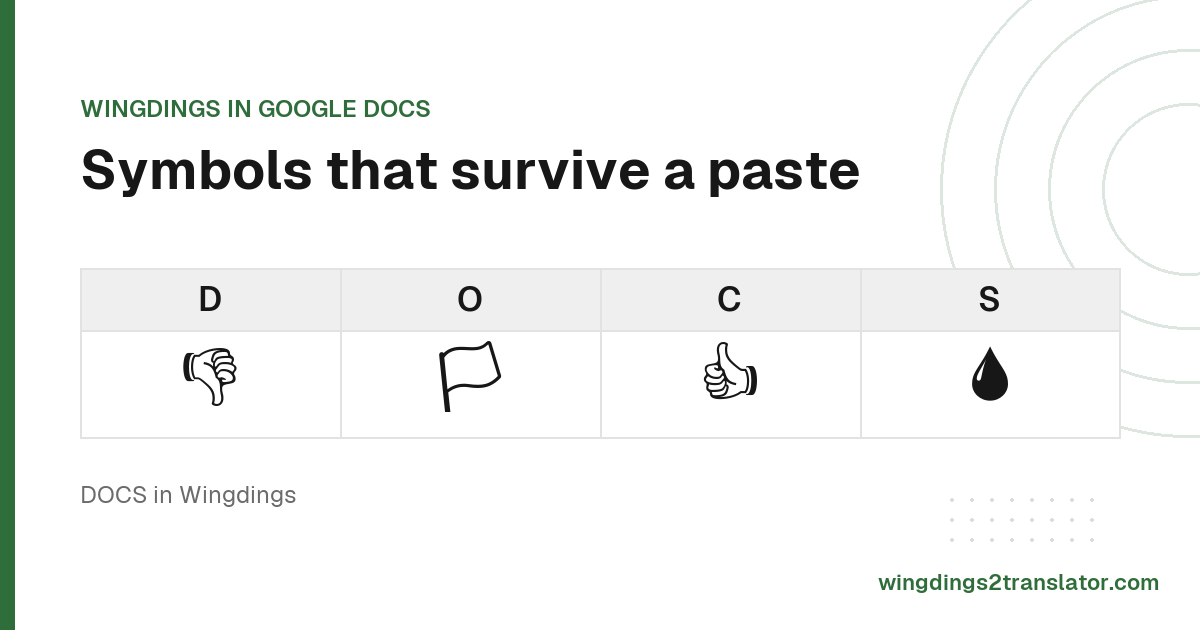
Why Wingdings is missing from Google Docs
Wingdings is a Microsoft font and Google Docs will not load it. The font menu is fed entirely by the Google Fonts library, which currently holds around 1,900 families and no dingbat faces at all. Wingdings, Wingdings 2, Wingdings 3 and Webdings are absent from every one of them.
There is no upload path either. Docs lets you add fonts through the More fonts dialog, but only ones already in that library.
Installing Wingdings on your own computer changes nothing here. Docs renders in the browser from its own font list, not from your system.
So every guide promising a font file you can add to Docs is describing something the product does not do.
The font itself has only ever shipped with Windows and Office. Where Wingdings came from explains why it never spread further.
How to get Wingdings symbols into Google Docs
Four steps, and the whole thing happens on this page.
- Type your message in the English box below.
- Read the symbols that appear in the second box.
- Press Copy.
- Paste straight into your Google Doc.
18 characters · 4 words
Full breakdown
What lands in your document is real, selectable text. You can restyle it, resize it and search it like any other characters.
Going the other way works too. Paste symbols you found in a document into the first box and the English comes back.
Why you need Unicode, not the font
Wingdings characters live in the Unicode Private Use Area, a range reserved for whatever a font wants to put there. Copy one out of Word and paste it into Docs and you get an empty box, because nothing outside that font knows what the codepoint is supposed to draw.
Unicode 7.0 fixed this in June 2014 by giving most Wingdings and Webdings symbols real, standard codepoints.
This site outputs those standard characters, which is why they survive the paste. The full Unicode mapping lists each one.
A few of the rarer symbols still render as boxes on some systems, since not every device font implements them. There is a fix for that inside Docs.
Open More fonts, search for Noto Sans Symbols 2, and add it. It sits in the same Google Fonts library Docs already draws on.
Apply that font to your pasted symbols and almost all of the remaining boxes fill in.
Between that family and its companion Noto Sans Symbols, 835 of the 841 codepoints these four fonts use are covered. This site loads the same two.
Inserting symbols directly in Google Docs
Docs has its own symbol picker, and for a handful of symbols it beats converting. Open the Insert menu, choose Special characters, then search by name or draw the shape you want. Many of the arrows, ticks, boxes and hands from Wingdings are in there as standard Unicode.
That route is quicker when you want one checkbox or one arrow and nothing else.
Converting wins when you have a phrase to encode, want a specific font version, or need the exact glyph a given key produces.
The two approaches reach the same place. Both end up as standard Unicode text in your document, which is the part that matters.
For anything longer than a symbol or two, the full translator handles all four font versions at once.
Wingdings in Google Docs FAQ
Can I install Wingdings in Google Docs?
You cannot install Wingdings in Google Docs. Docs offers only the fonts in Google's own library, and there is no upload option for a font file you already own. Converting your text to standard Unicode symbols is the only reliable route.
Will my document look right for other people?
Your document will look right for other people, because the converted symbols are standard Unicode characters rather than font-dependent ones. Anyone opening the file sees the same characters, on any device, without installing anything. That is the advantage over pasting from Word.
What about Google Slides and Sheets?
Google Slides and Sheets work exactly the same way, since all three draw on one shared font library. Wingdings is absent from each of them, and the same conversion fixes all three. Paste the Unicode output wherever you need it.